- In this walkthrough we will learn How to fix the Entity Framework error "does not have a primary key defined and no valid primary key could be inferred".

- In the case you design an Entity Type in the Entity Framework's conceptual entity model, based not on a sql table, but on a sql view, or in the case your table does not have a primary key defined, the entity framework will try to infer which column can be the unique KEY of the entity.
You cannot state a primary key for an SQL SERVER view, so if you create an Entity Framework entity based on a view, you may have an issue here.
Usually the Entity Framework will succeed inferring the primary key: if the SQL view is the result of a JOIN and you bring some primary key between the selected columns of the view, it will take that field as the unique KEY of the entity.
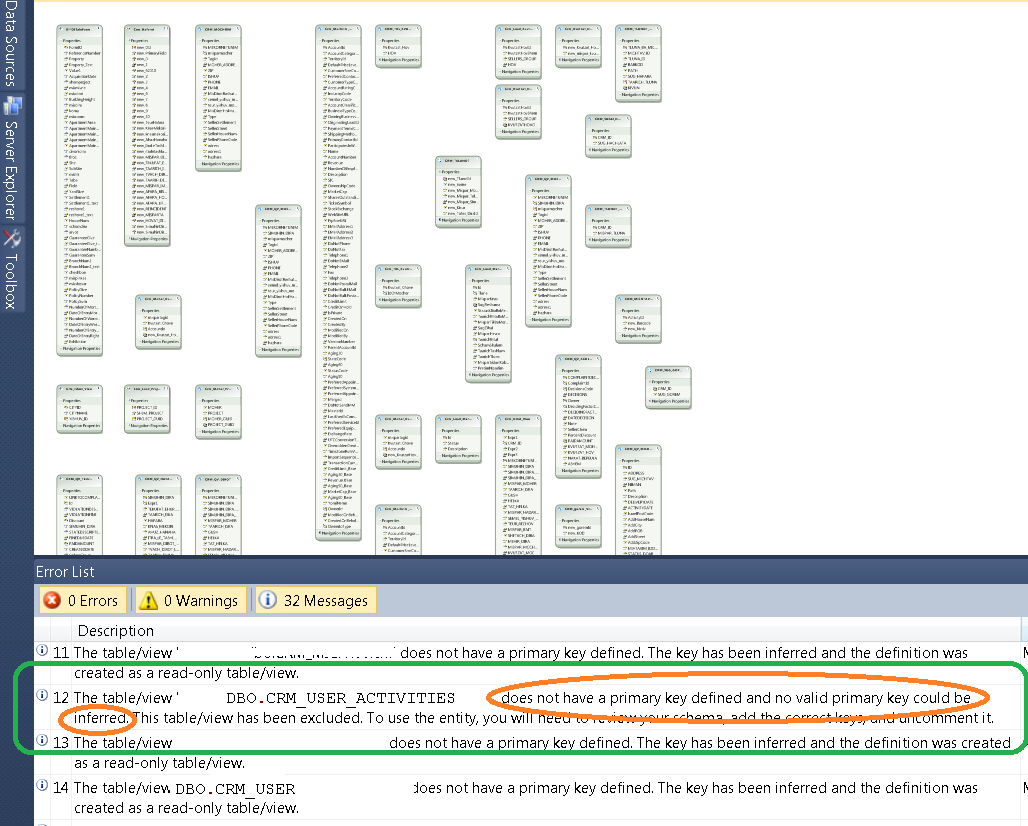
The error "does not have a primary key defined and no valid primary key could be inferred" tells us that the Entity Framework couldn't infer the primary key.
- In our example, we see that the entity CRM_USER_ACTIVITIES, based on the view of the same name, does not have a primary key:

- We received the error message because there is not field at the view that the Entity Framework can recognize as an original Primary Key of some table.In our example, NEW_IDENTIFIER is not a key, and ACTIVITYID, although a primary key of the table LETTERBASE, is camouflaged here inside the "GUID" column:

- To solve the problem, let's wrap the entire select inside another select which will load the Primary Key of the LETTERBASE table we spoke of before, ACTIVITYID, using an INNER JOIN, so that the Entity Framework will recognize the key: therefore state BEFORE the query the code

- And at the end of the query , let's close the JOIN defining the ON clause using the primary key:

- Now save the view using ALTER and rerun the Entity Framework rebuilding the Visual Studio project:

- Just press at Finish after selecting the CRM_USER_ACTIVITIES from the "Views" tree item:

- Another approach to solve the problem, is to add a new column to the SQL SERVER view, called ID. This column will be unique, because we'll insert in it a DENSE_RANK over the field that we know is unique:

That's all...Enjoy Dynamics CRMכתב: כרמל שוורצמן
Microsoft Dynamics CRM 2011
Showing posts with label Views. Show all posts
Showing posts with label Views. Show all posts
Thursday, October 3, 2013
Step-By-Step How to fix the Entity Framework error "no valid primary key could be inferred"
by Carmel Schvartzman


Monday, September 16, 2013
How to create a Custom View using the Advanced Search in Dynamics CRM
by Carmel Schvartzman
- In this walkthrough we will learn Step-By-Step How to use the Advanced Search in Dynamics CRM 2011, and save the search as a Custom View. The Advanced Search allows to perform custom searchs of entity records, export the results to Excel and even save the search as a View for further use. For instance, we could use the Advanced Search to find all the Accounts with a Name containing "Sean":

- So go to Accounts and find the Advanced Search ribbon button:

- The Advanced Search dialog will open. Press the New button OR select "New" from the Views list:

- Because we want to find all the Accounts with a Name containing "Sean", we need to select the "Account Name" field:

- Next add the operator "Contains": (notice you can also select Equals, Begins , Contains Data, and more):

- Next, click over "Enter Text" and type the searched term "Sean":

- Click on "Results" to find out whether we got the expected results:

- We got them, but there is a column we don't need ("Primary Contact"), so let's remove it. Click on "Edit Columns":

- On the Edit Columns dialog, select the column to remove, and click "Remove":

- Now, if we need to retrieve data from another column, click on Add Columns:

- Select the column you need to add:

- Click "Results" again to see the required data:

- Now, we want to see how to save the Advanced Search as a View, for future use, so go to Save As:

- Give the View a relevant name and its Description:

- In the future, you can see the saved View opening the "Saved Views":

- There we'll see our Advanced Search saved as a View:
That's all...Enjoy Dynamics CRMכתב: כרמל שוורצמן
Subscribe to:
Posts (Atom)