Microsoft Dynamics CRM 2011

Microsoft Dynamics CRM 2011
Showing posts with label SqlServer. Show all posts

Tuesday, April 16, 2019

SOLVED ERROR - Cannot find assembly "Microsoft.SqlServer.ManagedDTS" when calling an SSIS agent job from C# code


In this article we describe how to find the assembly "Microsoft.SqlServer.ManagedDTS"  when calling an SSIS agent job from C# code.

When calling an Sql Server Integration Services agent job SSIS programmatically from C# .Net code, in order to use the method  Execute , there is a need for using in the application the reference to the assembly  Microsoft.SqlServer.ManagedDTS .

The problem resides in finding that DLL . It should be installed in the pc, together with the rest of SQL SERVER DLLs.


How to find the assembly "Microsoft.SqlServer.ManagedDTS"  when calling an SSIS agent job from C# code


The first try will be to add the assembly via the assemblies list box in visual studio , only to find that it was not available there:


Then, we could go to the  SQL SERVER assemblies  folder : C:\Program Files\Microsoft SQL Server\90\SDK\Assemblies
Again, it will not be possible to get the assembly that way:


SOLUTION: 
Press WIN KEY + R to open the Run window , and run the GAC command : 


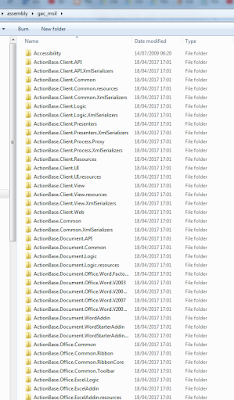
    C:\Windows\assembly\gac_msil


The GAC will open, and then make a search for the ManagedDTS assembly :

Copy it to the BIN folder of your VISUAL STUDIO project, then open the reference manager and BROWSE for it in the BIN folder :


Add the "Using" reference to your Project .
That's all...
In this article we've seen Step by step how to find the assembly "Microsoft.SqlServer.ManagedDTS" when calling an SSIS agent job from C# code.
Enjoy Microsoft Dynamics 365 CRM!

by Carmel Schvartzman

כתב: כרמל שוורצמן


    Monday, April 13, 2015

    How to name SQL parameters in an SSIS Execute SQL Task

    In this article we describe Step by step How to name SQL parameters in an SSIS Execute SQL Task , to avoid the common Sql Server Integration Services error : "Parameter name is unrecognized."  
    We follow here the conventions introduced by  MSDN in the SQL Server documentation for SSIS . For explaining naming SQL parameters in an Execute SQL Task ,  we will make use of the following SSIS application:

     How to use SQL parameters in an Execute SQL Task


    How to name SQL parameters in an SSIS Execute SQL Task


    We will want to give to the SQL parameters a proper name in order to avoid  the "Execute SQL Task" error, that can be seen in the picture above   : "Parameter name is unrecognized." :


         How to use   Execute SQL Task


    The  MSDN Documentation explains that naming conventions for using SQL  parameters in OLE DB  should be as follows:

    How to use SQL parameters in an Execute SQL Task 1


    Suppose that we have this SQL query which is using parameters. Then we must use the "?" marker this way :

     How to fix the SSIS error :  Parameter name is unrecognized. 1


    All parameters must be mapped to the query markers, and indexed base "0" . So, as we have 4 "?" markers, we must name 4 parameters indexed from "0" to "3" ,  using integer numbers conforming to the index positions:


          WHEN ?  - ? <  0          
          WHEN ?  - ? > 0   


     How to use SQL parameters   2


    That's all...Enjoy Dynamics CRM

    by Carmel Schvartzman

    כתב: כרמל שוורצמן


      Thursday, October 3, 2013

      Step-By-Step How to fix the Entity Framework error "no valid primary key could be inferred"

      by Carmel Schvartzman
      1. In this walkthrough we will learn How to fix the Entity Framework error "does not have a primary key defined and no valid primary key could be inferred".

      2. In the case you design an Entity Type in the Entity Framework's conceptual entity model, based not on a sql table, but on a sql view, or in the case your table does not have a primary key defined, the entity framework will try to infer which column can be the unique KEY of the entity.
        You cannot state a primary key for an SQL SERVER view, so if you create an Entity Framework entity based on a view, you may have an issue here.
        Usually the Entity Framework will succeed inferring the primary key: if the SQL view is the result of a JOIN and you bring some primary key between the selected columns of the view, it will take that field as the unique KEY of the entity.
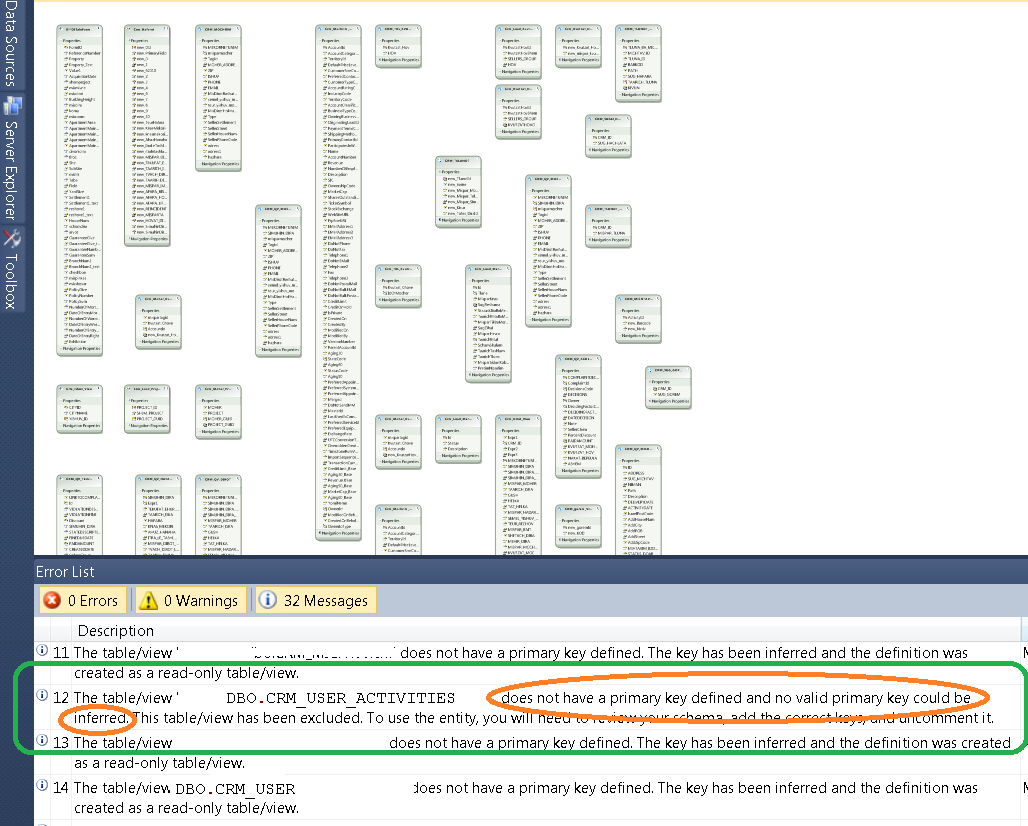
        The error  "does not have a primary key defined and no valid primary key could be inferred" tells us that the Entity Framework couldn't infer the primary key.
         
      3. In our example, we see that the entity CRM_USER_ACTIVITIES, based on the view of the same name, does not have a primary key:
      4. We received the error message because there is not field at the view that the Entity Framework can recognize as an original Primary Key of some table.In our example, NEW_IDENTIFIER is not a key, and ACTIVITYID, although a primary key of the table LETTERBASE, is camouflaged here inside the "GUID" column:
      5. To solve the problem, let's wrap the entire select inside another select which will load the Primary Key of the LETTERBASE table we spoke of before, ACTIVITYID, using an INNER JOIN, so that the Entity Framework will recognize the key: therefore state BEFORE the query the code
      6. And at the end of the query , let's close the JOIN defining the ON clause using the primary key:
      7. Now save the view using ALTER and rerun the Entity Framework rebuilding the Visual Studio project:
      8. Just press at Finish after selecting the CRM_USER_ACTIVITIES from the "Views" tree item:
      9. Another approach to solve the problem, is to add a new column to the SQL SERVER view, called ID. This column will be unique, because we'll insert in it a DENSE_RANK over the field that we know is unique:


        That's all...Enjoy Dynamics CRM


        כתב: כרמל שוורצמן

      Monday, September 2, 2013

      How to programmatically create a N:1 (MANY-TO-ONE) relationship in Dynamics CRM

      by Carmel Schvartzman

      1. In this walkthrough we will learn Step-By-Step How-to  develop an application to programmatically create a N:1 (MANY-TO-ONE) relationship in Dynamics CRM between two CRM entities: account and campaign. We assume that a campaign can spread on multiple accounts, therefore we'll create a MANY-TO-ONE relationship between ONE campaign to MANY accounts. In CRM 2011 we do that by adding a N:1 relationship at the account's dependencies. That means, when we are done, you could see an "Campaign" field on the Account's form holding a link to the Campaign this account is related. 
      2. First we'll RETRIEVE instances of an entity, using a QUERY EXPRESSION . There are two ways in CRM 2011 to do so.You can choose between an LATE-BINDING and an EARLY-BINDING approach: in early binding we have compile-time checking of all types, but when coding late binding we get runtime checking, that means there is a check only when an object is created or when an action is performed on it.
        To create all the types and entities existing  in our CRM organization, CRM have a tool called CrmSvcUtil.exe, a code generation tool. We use it if we want to create EARLY-BOUND entity classes. The LATE-BOUND approach uses the Organization Service webservice of the CRM, which includes both data and metadata attributes.  In this walkthrough we'll work with late-bound entities. To do so we'll develop a new project and use the OrganizationService in order to create new objects.
      3. First, start VISUAL STUDIO 2010 and create a console project:
        programmatically create a N:1 (MANY-TO-ONE) relationship in Dynamics CRM
      4. To use the OrganizationService, we need to add references to the following assemblies:2(You'll find them in the Bin folder of the CRM 2011 SDK and in .NET tab of the ADD REFERENCES)
      5. Now change the target framework to .NET Framework 4:3
      6. Next, we have to set up the webservice, using the Uri of the CRM organization webservice (its format is http://YOUR_CRM_SERVER/YOUR_CRM_ORGANIZATION/XrmServices/2011/Organization.svc):4
      7. After we connect to our Organization webservice, we want to RETRIEVE an entity object. To do so we have three options:
        1) create a QUERY EXPRESSION
        2) use LINQ
        3) use the FETCH XML query language

        In this walkthrough we'll learn the first option.

        IMPORTANT: when using the LATE BINDING approach, we need to use LOGIC entity names, not SCHEMA names(p.e. "account" but no "Account").
      8. We'll create a QUERY EXPRESSION, which works according to a FILTER that uses some pre-defined CONDITION. So first let's create that CONDITION. A condition includes an expression and its operators.
      9. Let's say for the sake of the example, that we want to retrieve all the accounts of customers called "David". If so, we need an SQL where-clause like this: "where name like '%David%'. Therefore we'll use the "LIKE" operator:
      10. Next we create the CONDITION expression: NAME + "LIKE" + "%David%":
      11. Now we can create the FILTER to get the required records: we just create a FilterExpression instance and set its Condition property to our condition previously stated:


         11. Next we can explicit which fields of the entity we want to get, using an ColumnSet object:


          12. Finally we call the RetrieveMultiple() method of the organization service, using our QueryExpression as a parameter:
              

      13. And the method returns an EntityCollection containing all the records we requested.
      14. The few next steps will be done on the CRM UI. Go to "Customize the System" and then to Entities. Find the "Account" entity and select "N:1 Relationships":


      programmatically create a N:1 (MANY-TO-ONE) relationship in Dynamics CRM

      Open the "Type" combo and select "Custom": this will filter only the relationships that you established:


      You'll see there are no relationships yet. After we execute the next steps, you'll check again this tabble and see the new dependency created.

      15. Now we create the account's field that will hold the relationship. Still at the "Account" properties, select the "FIELDS" option and click "NEW":


      The following dialog will open:


      At the NAME textbox add a "new_campaign" field: this will be the field that holds the related Campaign. 

      16. For the TYPE of the field select "Lookup":


      17. And for the TARGET RECORD TYPE select the related entity, Campaign:


      18. Slash the RELATIONSHIP NAME to make it more friendly:


      19. Finally, Save and Close the dialog:


      20. We are done. Now, if we go back to the "N:1 Relationships" table, we could see that automatically the CRM engine created for us a N:1 relationship between Account(RELATED ENTITY)  to Campaign(PRIMARY ENTITY):


      Finally , click "Publish All Customizations":


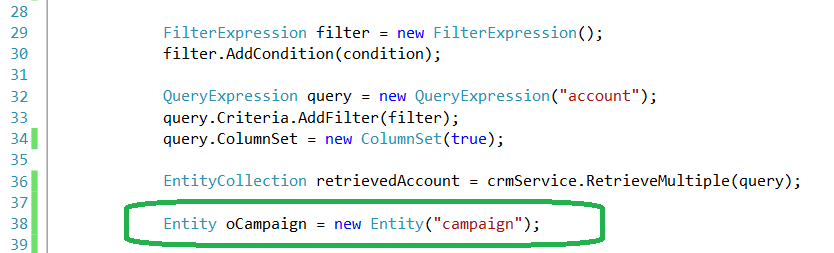
      21. Now we can go back to our code. We already have the Accounts we want to relate to the new Campaign. So let's programmatically create the new entity for Campaign:


      22. Next, we'll insert data in some fields of our election, and CREATE the entity:
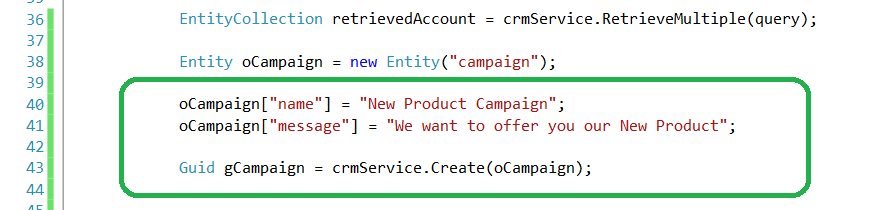

      Important: the GUID of the new entity returned by the Create method is kept for future use.

      23. Now that we have the new Campaign, let's loop over the retrieved entities to add the N:1 relationship we just created :


      Notice we have to carefully set the FIELD logic name and the ENTITY logic name, according to the specification:
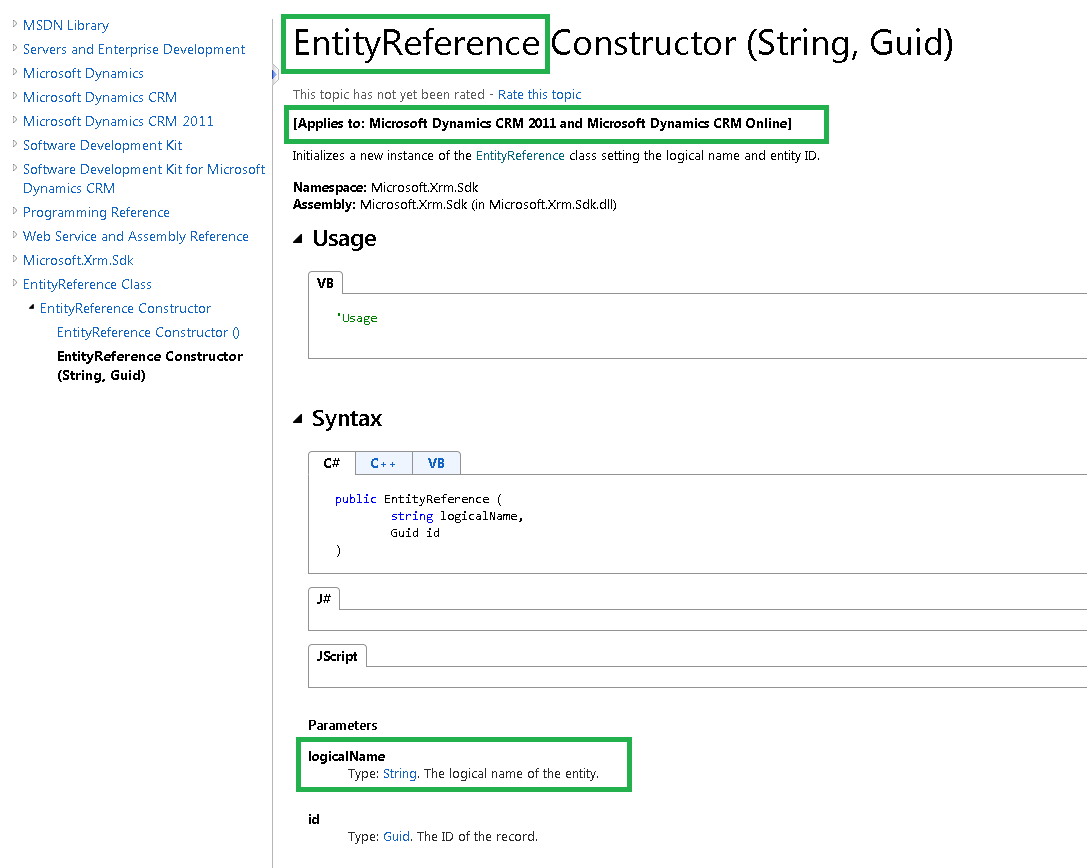
      That means, the LOGIC NAME of the parent entity must be provided, together with its guid. The guid we saved at a former step; and the logic name can be pick up from the Campaign properties:


      24. Finally, we Update() the Account entity to save the dependency


      Now, in order to see the relationship on the Account form, we add the field "Campaign Name" to the Account form:

      And if we open the Accounts we'll see the relationship programmatically added:

      By clicking it we access to its related Campaign:


      And that's all.
      This tutorial is about how to programmatically create a N:1 (MANY-TO-ONE) relationship in Dynamics CRM.
      Happy programming!!!!


      כרמל שוורצמן